Purchasing Your Permit: A Step-by-Step Guide
The instructions below describe the steps to obtain your campus parking permit on the iParq website.
If you encounter difficulty with these steps or with the iParq interface, please contact campus safety at (626) 914-8611 or visit the Welcome Center, located in the Student Services Building (SS 103), for hands-on assistance.
STEP 1. "Order Permits" Button
On the iParq introductory screen, click on the ORDER PARKING PERMITS HERE button.
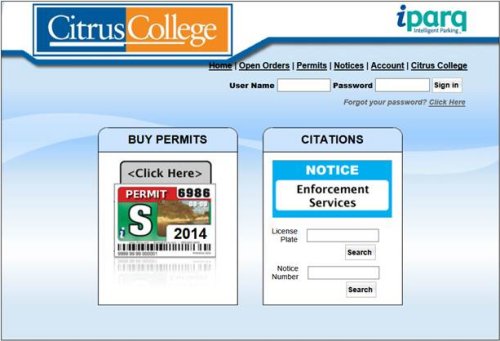
(Image may differ slightly that what appears on the iParq website.)
STEP 2. Sign into iParq
Sign in with your Citrus email and last four digits of your Citrus ID.
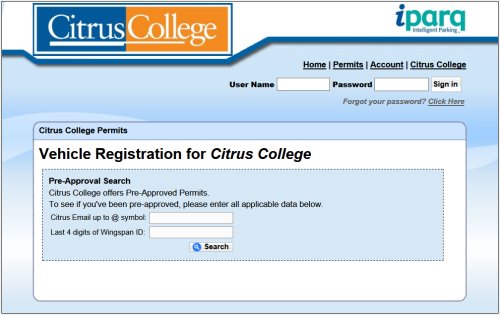
(Image may differ slightly that what currently appears on the iParq website.)
STEP 3. Select "Add Item"
To purchase a permit, select the "Add Item" button at the bottom of the page.
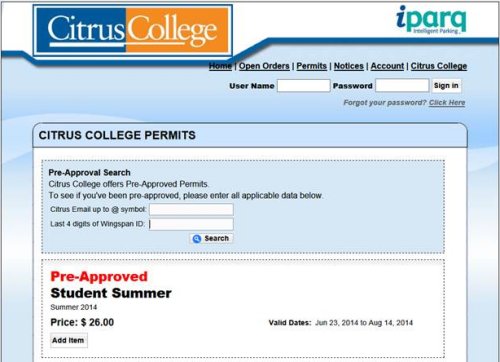
(Image will differ slightly that what currently appears on the iParq website.)
STEP 4. Select New Account
In this step, you will be creating a new account to purchase your parking permits. (Your student email address makes a good user name.)
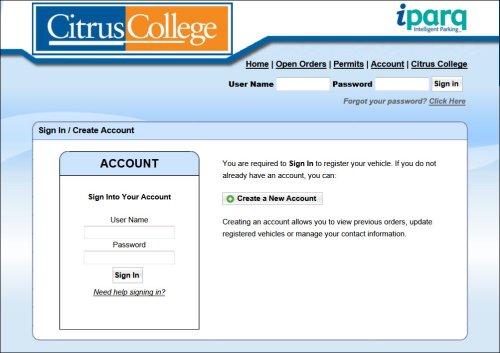
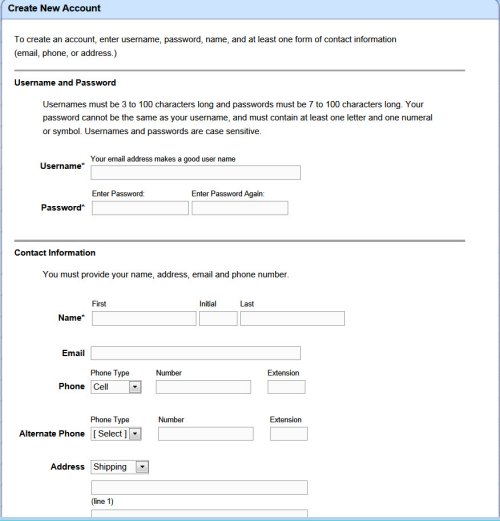
(Images may differ slightly that what currently appears on the iParq website.)
STEP 5. Add Your Vehicle
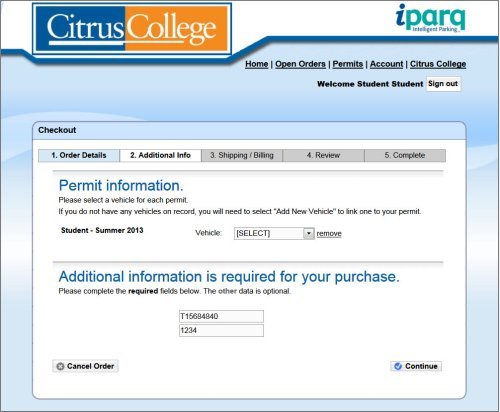
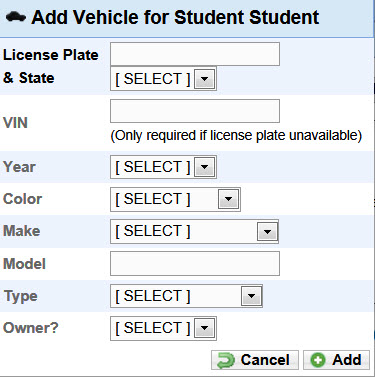
(Images may differ slightly that what currently appears on the iParq website.)
STEP 6. Secondary Vehicle Option
You may add a secondary vehicle to your permit, if needed.
As a friendly reminder, while up to two vehicles can be active on your account, both must be linked to the permit. Both linked vehicles cannot be parked on campus at the same time.
Parking permits cannot be shared.
It is your responsibility to enter the correct license plate number of your vehicle(s). Incorrect license plate numbers and vehicles not registered or linked to a valid permit may be cited.
NOTE: If you need to change/update a license plate number for your vehicle or add a vehicle to your permit, you must link the vehicles to your permit by doing the following:
- Click on "View Permits."
- Click on the blue circle/pencil icon.
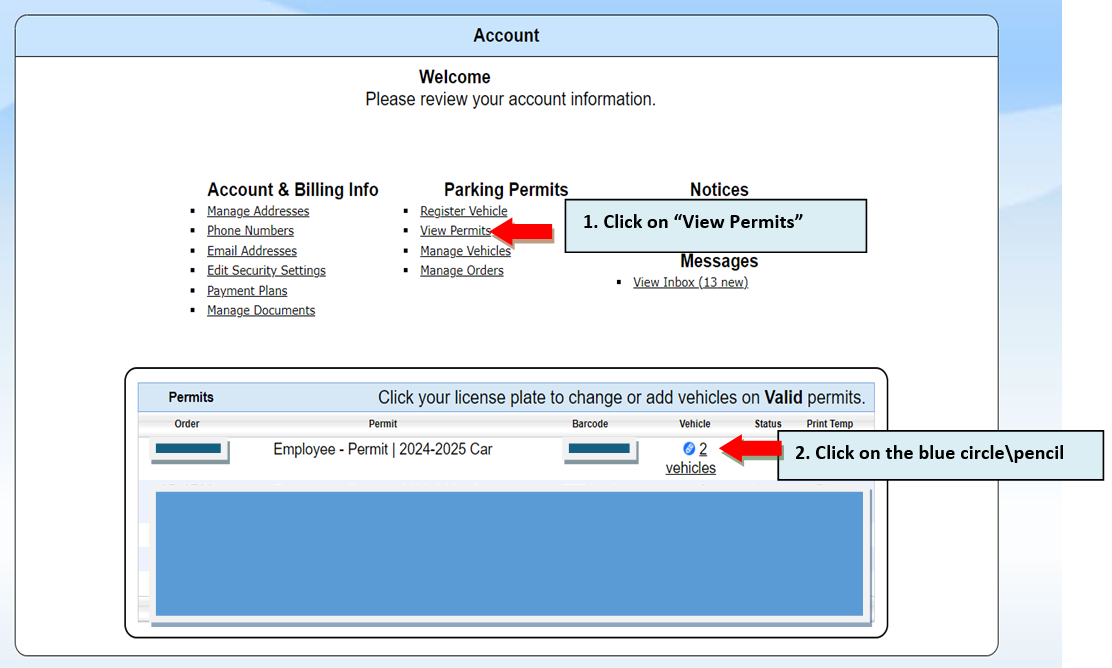
In the next window, it shows how to add another vehicle and make it "active."
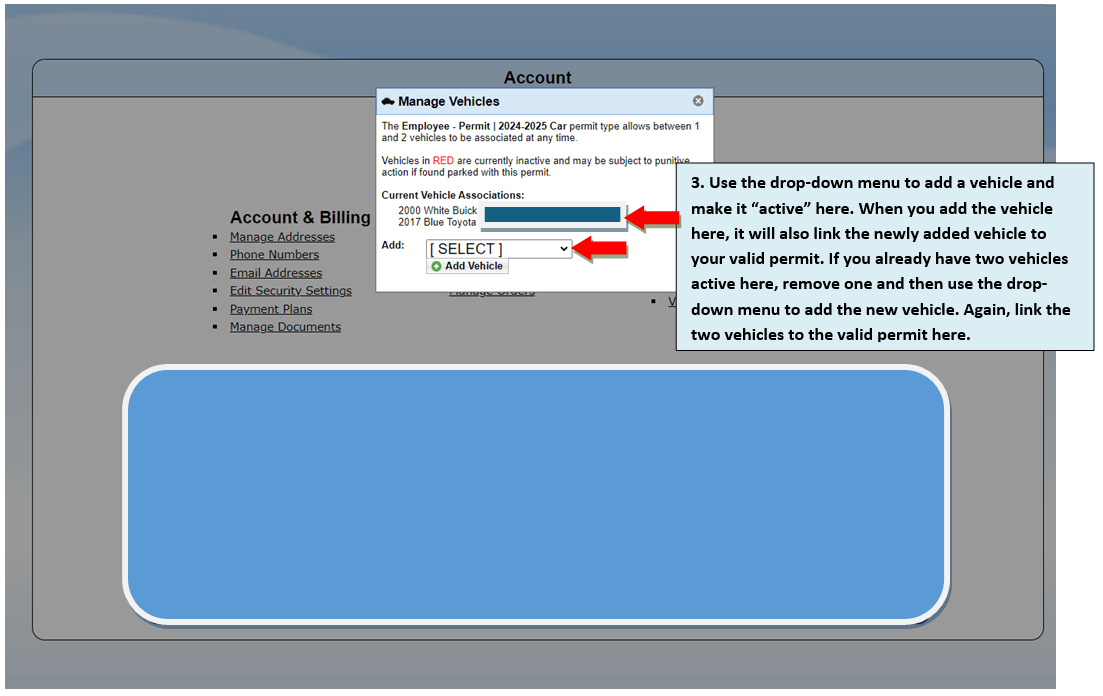
(Image may differ slightly that what currently appears on the iParq website.)
STEP 7. Payment
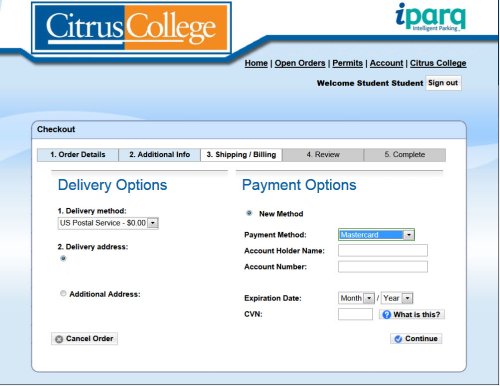
(Image may differ slightly that what currently appears on the iParq website.)